Chapter 1 settled what kind of project this is. This one settles what you are allowed to decide next, and the answer is: nothing, until the inventory exists.
That sounds like delay. It is the opposite. Almost every destination argument that goes in circles goes in circles because two people are arguing about an estate neither of them has counted. Someone says "we are mostly documents"; someone else says "we have a lot of custom work". Both are right, both are guessing, and the meeting ends with a decision that gets reopened in six weeks.
This chapter produces facts. Chapter 3 decides what those facts mean for the content, and chapter 4 chooses the destination.
The decision this chapter takes
Build the inventory first. Choose the destination afterwards.
That is the whole decision, and it is a real one, because the alternative is common: pick a destination in the first workshop because the answer feels obvious, then spend the project discovering the ways in which it was not.
What has to be in the inventory
Twelve things. Everything else this book asks you to decide sits on one of them.
- The SharePoint version, and the build number. Not "2016". The build. Supported upgrade paths and known blockers are stated per build, not per version, and
(Get-SPFarm).BuildVersiongives it to you in a second. - Lifecycle status. When support for that version ends, from Microsoft's own dates. Chapter 4 turns this into urgency; here it is only a fact to write down.
- The farms. All of them. Count the ones nobody administers, the one in a branch office, and the one somebody stood up for a project in 2019.
- The content databases, with size and item count for each.
- Total volume, in gigabytes and in items, because those two numbers fail in different ways and a migration is slow for whichever of them is large.
- Customisations, by type: full-trust solutions, sandboxed solutions, add-ins, JSLink, classic publishing pages, SPFx. Where they are activated, not where they are installed.
- Authentication. Classic Windows, claims, forms, SAML, and whether more than one provider is enabled on the same web application.
- Integrations. Anything that writes into SharePoint or reads from it on a schedule: BCS, nightly jobs, line-of-business connectors, reporting.
- Workflows, split by platform and, more importantly, by whether they have run recently.
- InfoPath forms, and where they are published.
- Usage. Which sites were opened, by how many distinct people, over a known number of days.
- Organisational constraints. Data residency, regulatory retention, contractual obligations. They are inventory too, and they eliminate destinations faster than anything technical.
Notice what is not on that list: how good the code is, whether a site matters to the business, and whether anyone would miss it. Those are chapter 3, and they are not measurements.
What a questionnaire can answer, and what it cannot
This is the table to keep. It is also the honest boundary of our own free tool.
| What you need to know | Why it matters | Can a questionnaire answer it? |
|---|---|---|
| SharePoint version and build | Decides which upgrade paths are supported | Yes |
| Number of farms | Decides whether this is one project or several | Yes |
| Content databases and their size | Decides the shape of the wave plan | Yes |
| Authentication model | Decides what has to change before anything moves | Yes |
| Which customisations exist | Decides how much does not move as it is | Partly. People report what they remember, and full-trust code is the part they forget |
| Code quality of those customisations | Decides rewrite effort, which is most of the budget | No |
| Business criticality of each site | Decides wave order and rollback appetite | No |
| Actual user adoption | Decides what is worth migrating at all | No |
The four "yes" rows are why the SharePoint Compass is useful in two minutes. The bottom three are why it says, in its own report, that it cannot know them. A tool that claimed otherwise would be selling you a number it invented.
Where these facts come from
Test-SPContentDatabase is the one that finds what you did not know you had. Run against a content database, it verifies that every customisation referenced inside it is actually installed in the web application, and reports missing features, templates, web parts and assemblies with a reference count. It changes nothing, but it does load the database, so Microsoft's guidance is to run it against a database under low or no usage. It is silent when it finds nothing, which surprises people the first time.
Older inventories often used Stsadm -o enumallwebs -includefeatures -includewebparts to enumerate templates, features and web parts per site. It is worth recognising when you read inherited scripts or operational documentation written years ago, and it is not the approach this guide recommends for a new assessment. It is also not available everywhere: Stsadm.exe is listed among the features removed from SharePoint Server Subscription Edition, so a script that depends on it stops working at the destination, not at the source.
The SharePoint Migration Assessment Tool (SMAT) scans a farm and produces per-site reports: customised pages, sandboxed solutions, large lists, checked-out files, master pages, publishing sites, BCS, secure store, email-enabled lists, custom permission levels and more. It also ships the SharePoint Migration Identity Management Tool, which maps identities across SharePoint, Active Directory and Microsoft Entra ID.
Read the next sentence before you plan around SMAT. Microsoft documents its supported versions as SharePoint Server 2010, 2013 and 2016. If you are on 2019 or Subscription Edition, SMAT is not the tool, and a plan that assumed it was has a hole in it.
One more thing SMAT gives you that nothing else does easily: usage. Its site-level reports carry hits, distinct users, and the number of days of usage data behind those figures. That last column matters. If the usage logging service is disabled, the report says N/A, and you have no adoption data at all. Turning usage logging on is therefore the cheapest thing you can do today, because the data only starts accumulating from the moment you do.
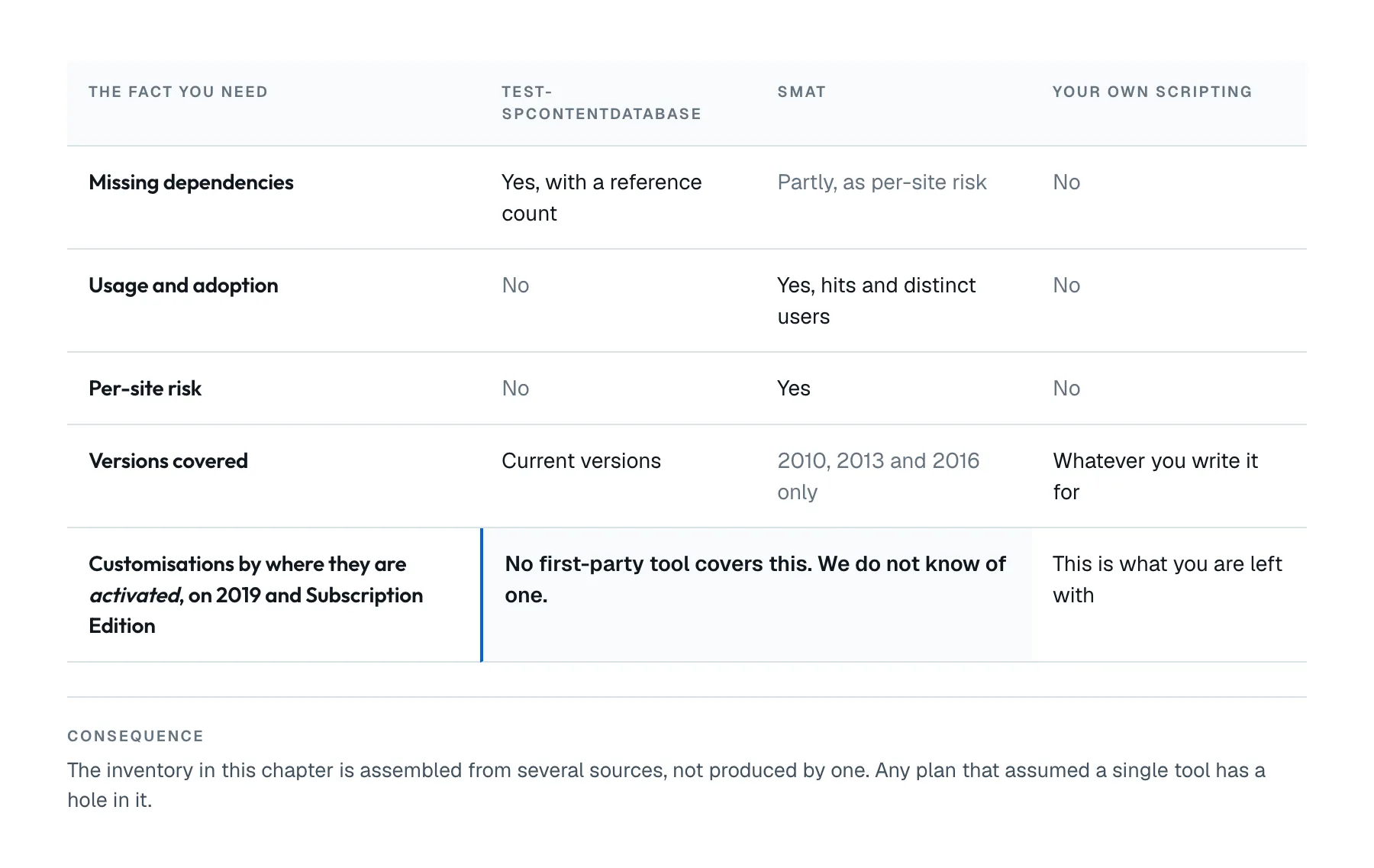
Figure 2.1. What each source gives you, and the one row where none of them answers.
Which leaves a gap, and it is worth naming plainly: no single supported Microsoft tool produces the whole picture in this chapter for every supported version of SharePoint. Test-SPContentDatabase finds missing dependencies but says nothing about usage. SMAT covers usage and per-site risk but stops at 2016. And we do not know of a first-party equivalent that gives you customisations by where they are activated across 2019 and Subscription Edition. That gap is why the inventory in this chapter is assembled from several sources rather than produced by one, and it is the gap the Inventory Analyzer named later in this guide is being built to close. Until it exists, Test-SPContentDatabase plus your own scripting is what you have on those versions, and this guide will not pretend otherwise.
Two numbers that decide more than they look like they should
Content database size. Microsoft strongly recommends limiting content databases to 200 GB. Databases up to 4 TB are supported, but only when you meet the conditions: 0.25 IOPS per GB of disk subsystem performance, with 2 IOPS per GB recommended, plus documented plans for high availability, disaster recovery, capacity and performance testing. Above 4 TB, support narrows to document archive scenarios with their own conditions. Separately, site collection backup and restore is supported only up to 100 GB. So a 900 GB site collection is not merely large; it has left the part of the product where the granular tools work.
Item counts. The list view threshold is 5,000 items, in SharePoint Online and, by default, on the server versions, where administrators can raise it and where separate thresholds apply for indexing and deletion. A list or library can hold 30 million items, so a list can be entirely supported and entirely unusable at the same time. And in SharePoint Online, once a list, library or folder passes 100,000 items you can no longer break or reinherit permissions inheritance on it, which is a constraint on the destination, not on the source.
You do not need to solve any of this now. You need the numbers, because chapters 3 and 4 cannot be answered without them.
Every figure in this section is from Microsoft's published limits for SharePoint Servers 2016 and 2019 and for SharePoint in Microsoft 365, checked on 2 August 2026. Limits move. Check them again when you read this.
Common mistake
Asking people what is in the farm.
They answer confidently, and they are wrong in a consistent direction: too small, too tidy, too recent.
It is not carelessness. A site owner knows their own site. An administrator knows the farm they administer, which is not the same as all the farms. A developer knows the solutions they wrote, not the two that were deployed by a contractor in 2018 and are still activated on nine sites. Nobody in the room is lying, and the sum of what they say is still not the estate.
The correction costs an afternoon: every line of the inventory carries the command or report it came from. When a number is later disputed, and one will be, you re-run the command instead of re-running the meeting.
Out of scope
Judging what deserves to migrate. That is chapter 3, and it is a different kind of work: this chapter counts, that one decides.
Choosing a migration tool. Chapter 1 explains why it comes later, and you cannot brief a tool on an estate you have not measured.
Licensing, budget, schedule and effort. All four are downstream of the inventory. Any of them quoted before it exists is a guess wearing a number, and this guide will not help you produce one.
How to install and run the collection tooling. Microsoft documents that better than we can, and it changes. This chapter tells you what to collect and why.
Before you continue
- You can state the version and the build number of every farm
- You know how many farms exist, including the ones nobody administers
- You have the size and the item count of every content database
- You know where customisations are activated, not just where they are installed
- You know which workflows have actually run recently
- You know which sites nobody has opened in a year, or you know that you cannot know yet
- Every number above came from a command or a report, and you wrote down which one
The SharePoint Compass answers the four rows this chapter marks "yes" in about two minutes, and tells you plainly which rows it cannot answer. It is free and asks for nothing.
pH7x Systems. Chapter 2 of the SharePoint Migration Field Guide, published 2 August 2026 at ph7x.com/guide. The guide is being written one chapter at a time; the chapters that exist are listed there.
Download chapter 2 (PDF)Same text, same tables, same sources as this page.