
Support for SharePoint Server 2016 and 2019 ends on 14 July 2026, and the only supported on-premises destination is Subscription Edition. This article is the sequence, in PowerShell, with the parts that block a migration marked where they actually bite.
One thing before the code, because it changes the plan and the budget.
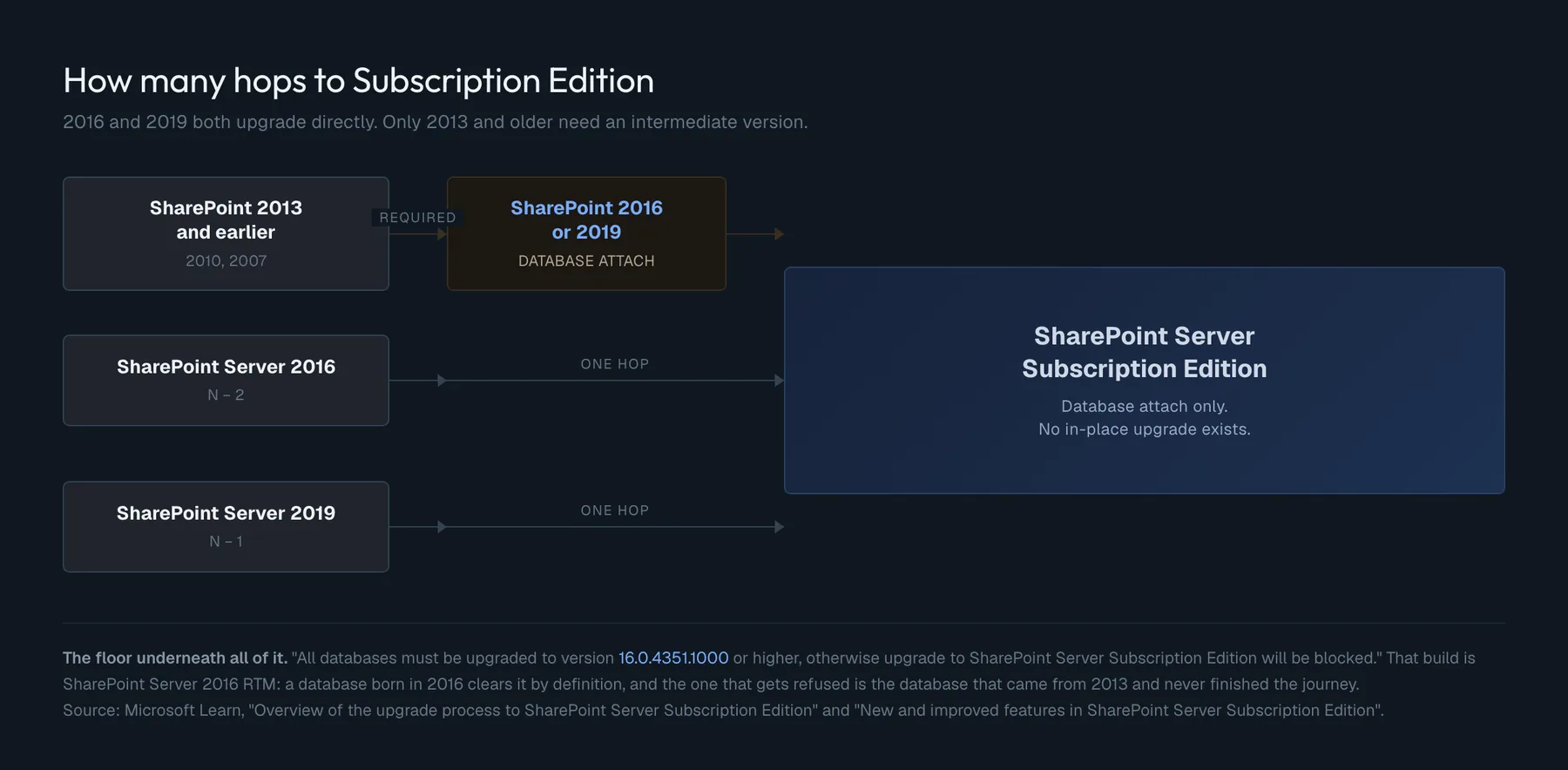
SharePoint 2016 goes straight to Subscription Edition
The most expensive belief in this project is that you have to pass through 2019 first. You do not.
"SharePoint Server Subscription Edition supports both N - 1 and N - 2 version-to-version upgrade. You can upgrade directly from the following SharePoint products using the standard database attach upgrade procedure: SharePoint Server 2019 (including Project Server 2019), SharePoint Server 2016 (including Project Server 2016)."
One hop, from either. The double hop is only required below 2016:
"Directly upgrading from versions of SharePoint earlier than SharePoint Server 2016 via database attach is not supported. SharePoint 2013, SharePoint 2010, and so on must first be upgraded to either SharePoint Server 2016 or SharePoint Server 2019 via database attach before upgrading to SharePoint Server Subscription Edition."
And there is a floor underneath all of it:
"All databases must be upgraded to version 16.0.4351.1000 or higher, otherwise upgrade to SharePoint Server Subscription Edition will be blocked."
That number is the SharePoint Server 2016 RTM build. A database born in 2016 clears it by definition. The one that gets refused is the database that came from 2013, was attached to a 2016 farm, and never really finished the journey.
The method decides the plan
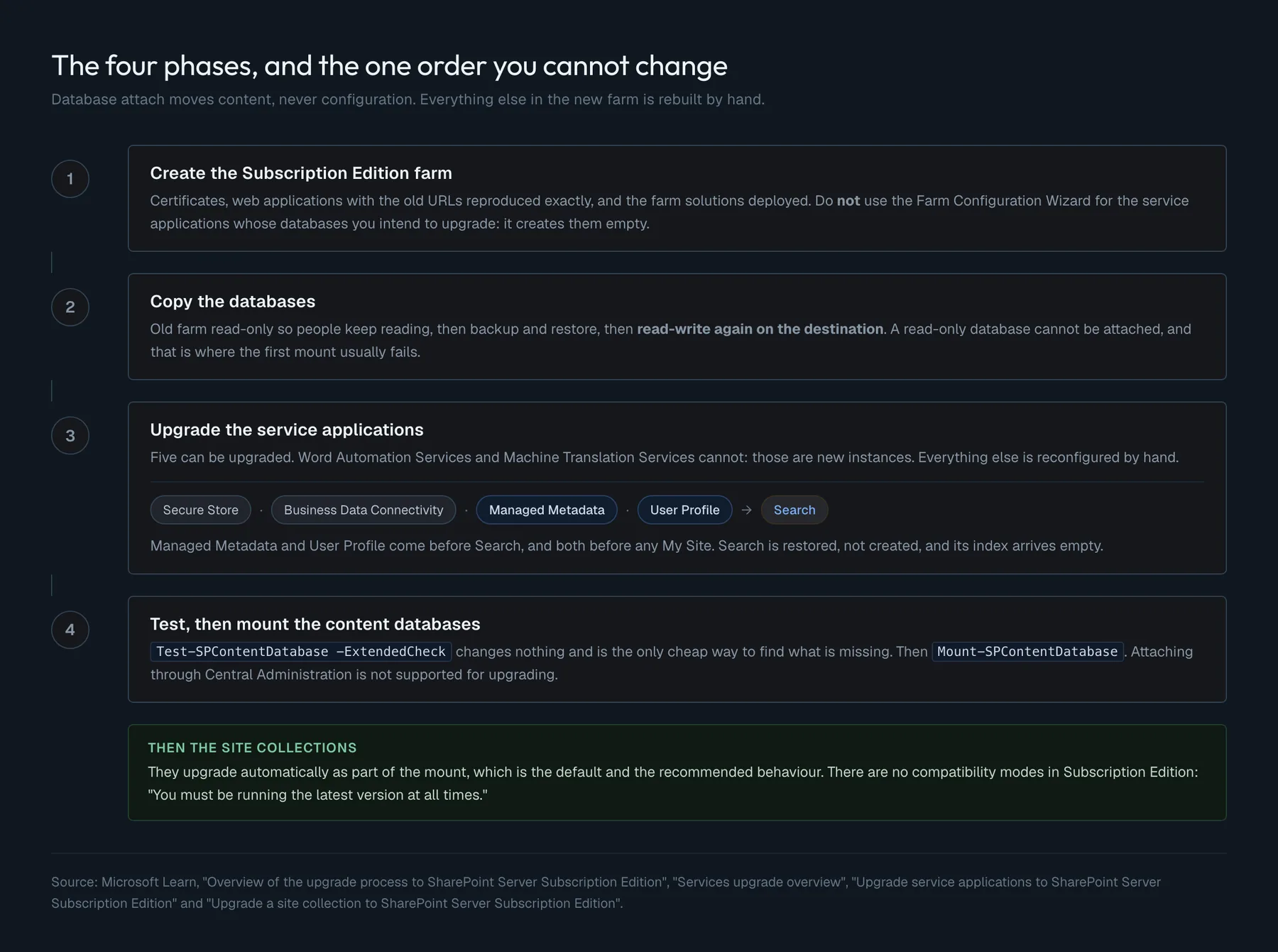
There is no in-place upgrade. The only supported route is database attach, which means you build a second farm and move content into it. Configuration does not travel: web applications, service applications, policies and settings are rebuilt by hand in the new farm. That is not a limitation to work around, it is the shape of the project.
Everything below assumes the SharePoint Management Shell running as an elevated administrator, with the account holding db_owner on every database being upgraded, securityadmin on the SQL instance, membership of the local Administrators group, and rights granted through Add-SPShellAdmin.
Rehearse this before you run it. Every cmdlet and every parameter below comes from Microsoft's documentation, and the ordering constraints are the ones Microsoft states. But no two farms are the same, and a sequence assembled from documentation is a plan, not a script to paste into production. Build it on a test farm restored from your own backups, time each phase there, and only then run it for real. The rehearsal section at the end is not optional advice.
Phase 0: the inventory, taken before anything moves
The new farm has to be able to answer for everything the old one had. Take the inventory first, keep it in source control, and diff against it at the end. This runs on the old farm.
# INVENTORY.PS1: runs on the SharePoint 2016 or 2019 farm.
# Reads only. Produces the record that the new farm gets compared against.
$out = "C:\Migration\inventory"
New-Item -ItemType Directory -Path $out -Force | Out-Null

# Patch level of every SharePoint product in the farm. This is the documented
# way to see what is actually installed, server by server.
Get-SPProduct |
  Select-Object ProductName, @{n='Patches';e={ $_.PatchableUnitDisplayNames -join '; ' }} |
  Export-Csv "$out\products.csv" -NoTypeInformation -Encoding UTF8

# Web applications with their URLs and authentication. The new farm has to
# reproduce these URLs exactly, or every link inside the content breaks.
Get-SPWebApplication -IncludeCentralAdministration |
  Select-Object DisplayName, Url,
    @{n='Zones';e={ ($_.AlternateUrls | ForEach-Object { "$($_.UrlZone)=$($_.IncomingUrl)" }) -join ' | ' }},
    @{n='ClaimsMode';e={ $_.UseClaimsAuthentication }} |
  Export-Csv "$out\webapps.csv" -NoTypeInformation -Encoding UTF8

# Content databases, their sizes and how many site collections each holds.
# The counts are what tells you which mount will take twenty minutes and
# which will take six hours.
Get-SPContentDatabase |
  Select-Object Name, Server, WebApplication, CurrentSiteCount,
    @{n='SizeGB';e={ [math]::Round($_.DiskSizeRequired / 1GB, 2) }} |
  Export-Csv "$out\contentdbs.csv" -NoTypeInformation -Encoding UTF8

# Farm solutions. These have to be deployed to the new farm BEFORE the content
# databases are tested, and this list is what you deploy.
Get-SPSolution |
  Select-Object Name, Deployed, ContainsGlobalAssembly, ContainsWebApplicationResource,
    @{n='DeployedTo';e={ ($_.DeployedWebApplications | ForEach-Object { $_.Url }) -join ' | ' }} |
  Export-Csv "$out\solutions.csv" -NoTypeInformation -Encoding UTF8

# Service applications and their databases. Five of these can be upgraded.
# Everything else on this list is a rebuild, and it is better to know now.
Get-SPServiceApplication |
  Select-Object DisplayName, TypeName, Status |
  Export-Csv "$out\serviceapps.csv" -NoTypeInformation -Encoding UTF8

Get-SPDatabase |
  Select-Object Name, Type, Server,
    @{n='SizeGB';e={ [math]::Round($_.DiskSizeRequired / 1GB, 2) }} |
  Export-Csv "$out\databases.csv" -NoTypeInformation -Encoding UTF8

# Every site collection, with its template. The templates are what a missing
# feature shows up as later, so this is the list you check against.
Get-SPSite -Limit All |
  Select-Object Url, @{n='Template';e={ $_.RootWeb.WebTemplate + '#' + $_.RootWeb.Configuration }},
    ContentDatabase, Owner |
  Export-Csv "$out\sites.csv" -NoTypeInformation -Encoding UTF8

Write-Host "Inventory written to $out" -ForegroundColor Green
Two of those files earn their place immediately. solutions.csv becomes phase 2, and webapps.csv becomes phase 1, because the URLs in the new farm have to match the old ones character for character.
Phase 1: the farm that receives it
Build the Subscription Edition farm, then recreate the web applications. One decision to make deliberately: if you intend to upgrade the service application databases, do not use the Farm Configuration Wizard to create those service applications. The wizard creates them empty, and an empty Managed Metadata service application is not something you can later point at your old database.
Certificates first, because Subscription Edition manages them in the farm and a web application can be handed one at creation.
# CERTIFICATES. Subscription Edition deploys imported certificates to the
# Windows certificate store on every server in the farm automatically, and
# to any server that joins later.
$pfxPassword = Read-Host -AsSecureString -Prompt 'PFX password'
Import-SPCertificate -Path '\\fileserver\certs\sharepoint.contoso.com.pfx' `
                     -Password $pfxPassword -Exportable

# The whole chain has to be present, not just the leaf, or SSL connections fail.
Import-SPCertificate -Path '\\fileserver\certs\issuing-ca.p7b'

# Confirm what landed, and in which store.
Get-SPCertificate | Select-Object DisplayName, Store, NotAfter, Thumbprint

# Warn earlier than the default. The health rules then chase expiry for you.
Set-SPCertificateSettings -CertificateExpirationWarningThreshold 45
Then the web applications, matching the inventory.
# WEB APPLICATIONS. The URL must match the old farm exactly: it is written
# into links, into search results and into anything anyone ever bookmarked.
$appPoolAccount = Get-SPManagedAccount 'CONTOSO\svc-sp-content'

# Windows claims. Classic mode was REMOVED for content web applications in
# Subscription Edition, so a farm that was still classic changes here, not later.
$ap = New-SPAuthenticationProvider

New-SPWebApplication -Name 'Contoso Intranet' `
    -ApplicationPool 'ContosoIntranetPool' `
    -ApplicationPoolAccount $appPoolAccount `
    -AuthenticationProvider $ap `
    -Port 443 -SecureSocketsLayer `
    -HostHeader 'sharepoint.contoso.com' `
    -Url 'https://sharepoint.contoso.com' `
    -Certificate 'sharepoint.contoso.com' `
    -UseServerNameIndication `
    -DatabaseName 'SP_Content_Placeholder'

# Server Name Indication is what lets several web applications share port 443
# with their own certificates. Without it they all share one certificate.
The placeholder database is deliberate: the web application needs one to exist, and the real content databases arrive in phase 4. Delete the placeholder afterwards, once the real databases are mounted.
One trap that costs an outage. If you later change bindings with Set-SPWebApplication, respecify all of them:
"All IIS binding settings should be respecified when updating the binding of an IIS website via the
Set-SPWebApplicationcmdlet. This includes the URL, secure sockets layer setting, the port number, the host header, and the certificate. If a binding setting isn't respecified, it will revert to its default value."
# Right: every binding setting stated, even the ones that are not changing.
Set-SPWebApplication -Identity 'https://sharepoint.contoso.com' -Zone Default `
    -Port 443 -SecureSocketsLayer `
    -HostHeader 'sharepoint.contoso.com' `
    -Url 'https://sharepoint.contoso.com' `
    -Certificate 'sharepoint.contoso.com' `
    -UseServerNameIndication
Phase 2: the customisations go before the content
This is the ordering mistake that produces the longest and least useful troubleshooting session of the project. Test-SPContentDatabase reports every feature, template and assembly the content references and cannot find. Run it before the solutions are deployed and you get a report of hundreds of entries that are all the same problem.
Microsoft names it as the common cause:
"One frequent cause of failures during upgrade is that the environment is missing customized features, solutions, or other elements."
# SOLUTIONS. Driven from solutions.csv, produced by the inventory.
$wsps = Import-Csv 'C:\Migration\inventory\solutions.csv'

foreach ($w in $wsps) {
    $path = Join-Path 'C:\Migration\wsp' $w.Name
    if (-not (Test-Path $path)) {
        Write-Warning "MISSING: $($w.Name). Find the package, or the sites that use it will not upgrade cleanly"
        continue
    }

    $solution = Add-SPSolution -LiteralPath $path

    # GACDeployment is required when the package contains a global assembly.
    # The inventory recorded that per solution, so it is not a guess.
    $gac = [bool]::Parse($w.ContainsGlobalAssembly)

    if ($w.ContainsWebApplicationResource -eq 'True') {
        Install-SPSolution -Identity $solution -AllWebApplications `
                           -GACDeployment:$gac -Force
    } else {
        Install-SPSolution -Identity $solution -GACDeployment:$gac -Force
    }
}

# Deployment is asynchronous: it runs on a timer job. Wait for it, or the
# next phase tests against a farm that is still deploying.
do {
    Start-Sleep -Seconds 15
    $pending = Get-SPSolution | Where-Object { $_.JobExists }
    Write-Host "Waiting for $($pending.Count) solution job(s)..."
} while ($pending)

Get-SPSolution | Select-Object Name, Deployed, DeploymentState | Format-Table -AutoSize
Anything on the missing list is a decision, not a warning. Either the package is found and rebuilt, or the sites depending on it are inventoried and dealt with before the migration, not during it.
Phase 3: freeze, copy, thaw
The old farm goes read-only rather than offline, so people keep reading while the copy runs. This is T-SQL, on the source instance.
-- ON THE OLD FARM'S SQL INSTANCE.
-- Read-only, not offline: people keep reading during the copy window.
ALTER DATABASE [WSS_Content_Intranet] SET READ_ONLY WITH ROLLBACK IMMEDIATE;

-- COPY_ONLY leaves the existing backup chain intact. Without it, this backup
-- becomes part of the chain and the scheduled restore plan quietly changes.
-- CHECKSUM makes the restore refuse a backup that was damaged in transit.
BACKUP DATABASE [WSS_Content_Intranet]
    TO DISK = N'\\fileserver\migration\WSS_Content_Intranet.bak'
WITH COPY_ONLY, COMPRESSION, CHECKSUM, STATS = 5;-- ON THE SUBSCRIPTION EDITION FARM'S SQL INSTANCE.
RESTORE DATABASE [WSS_Content_Intranet]
FROM DISK = N'\\fileserver\migration\WSS_Content_Intranet.bak'
WITH MOVE 'WSS_Content_Intranet' TO N'E:\SQLData\WSS_Content_Intranet.mdf',
MOVE 'WSS_Content_Intranet_log' TO N'F:\SQLLogs\WSS_Content_Intranet_log.ldf',
REPLACE, STATS = 5;
-- A restored copy inherits the read-only state, and a read-only database
-- cannot be attached. This is the step people forget, and Mount fails on it.
ALTER DATABASE [WSS_Content_Intranet] SET READ_WRITE WITH ROLLBACK IMMEDIATE;The same three statements apply to the service application databases, with one exception handled in the next phase: the Search administration database is copied later, and only after Search has been paused.
Phase 4: the service applications, in the order that is not a preference
Five service application databases can be upgraded: Business Data Connectivity, Managed Metadata, Secure Store, User Profile and Search. Everything else is reconfigured by hand, and two are explicitly refused:
"Word Automation Services and Machine Translation Services can't be upgraded. A new service instance will need to be created."
The order is fixed by dependencies. Managed Metadata and User Profile both come before Search, and both come before any My Site.
# SERVICE APPLICATIONS. Order matters: MMS and UPA before Search.
$applicationPool = Get-SPServiceApplicationPool -Identity 'SharePoint Web Services default'

# --- Secure Store -------------------------------------------------------
# The passphrase is from the OLD farm. Without it the stored credentials are
# unreadable, and no amount of restoring gets them back.
$sss  = New-SPSecureStoreServiceApplication -Name 'Secure Store' `
            -ApplicationPool $applicationPool `
            -DatabaseName 'Secure_Store_Service_DB' -AuditingEnabled
$sssp = New-SPSecureStoreServiceApplicationProxy -Name 'Secure Store Proxy' `
            -ServiceApplication $sss -DefaultProxyGroup

$oldPassphrase = Read-Host -Prompt 'Secure Store passphrase from the old farm'
Update-SPSecureStoreApplicationServerKey -Passphrase $oldPassphrase `
            -ServiceApplicationProxy $sssp

# --- Business Data Connectivity ----------------------------------------
# The only one that creates its own proxy and puts it in the default group.
New-SPBusinessDataCatalogServiceApplication -Name 'BDC Service' `
    -ApplicationPool $applicationPool -DatabaseName 'BDC_Service_DB'

# --- Managed Metadata ---------------------------------------------------
$mms = New-SPMetadataServiceApplication -Name 'Managed Metadata Service' `
           -ApplicationPool $applicationPool `
           -DatabaseName 'Managed_Metadata_Service_DB'
New-SPMetadataServiceApplicationProxy -Name 'Managed Metadata Proxy' `
    -ServiceApplication $mms -DefaultProxyGroup

# --- User Profile -------------------------------------------------------
# After Managed Metadata, and before any My Site is touched. The Sync
# database is NEW: only Profile and Social come across.
New-SPProfileServiceApplication -Name 'User Profile Service Application' `
    -ApplicationPool $applicationPool `
    -ProfileDBName 'UPA_ProfileDB' `
    -SocialDBName  'UPA_SocialDB' `
    -ProfileSyncDBName 'UPA_SyncDB'

$upa = Get-SPServiceApplication | Where-Object { $_.TypeName -eq 'User Profile Service Application' }
New-SPProfileServiceApplicationProxy -Name 'User Profile Proxy' -ServiceApplication $upa

$upaProxy = Get-SPServiceApplicationProxy |
            Where-Object { $_.TypeName -eq 'User Profile Service Application Proxy' }
Add-SPServiceApplicationProxyGroupMember -member $upaProxy -identity ''
Search is last, and it has a step on the old farm in the middle of it.
# --- Search, part one: ON THE OLD FARM ---------------------------------
# The Search Administration database is copied later than the others, because
# Search has to be paused first. While it is paused the old index stops
# updating, so results on the old farm get staler during the window.
$ssaOld = Get-SPEnterpriseSearchServiceApplication 'Search Service Application'
Suspend-SPEnterpriseSearchServiceApplication -Identity $ssaOld
# Now set the Search Admin DB read-only, back it up and restore it, as in phase 3.# --- Search, part two: ON THE SUBSCRIPTION EDITION FARM ----------------
# The Search service instance cannot be started from Central Administration
# until a Search service application exists, so PowerShell it is.
$searchInst = Get-SPEnterpriseSearchServiceInstance -local
Start-SPServiceInstance $searchInst
# Restore, not New: this is what upgrades the admin database instead of
# creating an empty one. It keeps the search schema, the result sources and
# the query rules. It does NOT keep the index.
Restore-SPEnterpriseSearchServiceApplication `
-Name 'Search Service Application' `
-applicationpool $applicationPool `
-databasename 'Search_Service_Application_DB' `
-databaseserver 'SQLSE01' `
-AdminSearchServiceInstance $searchInst
$ssa = Get-SPEnterpriseSearchServiceApplication
New-SPEnterpriseSearchServiceApplicationProxy -Name 'Search Proxy' -SearchApplication $ssa
$ssap = Get-SPEnterpriseSearchServiceApplicationProxy
Add-SPServiceApplicationProxyGroupMember -member $ssap -identity ''If that restore fails, and network or SQL latency is enough to make it fail, the documented recovery is not to retry in place: delete the half-upgraded Search Administration database, restore the backup copy again, set it read-write, and run the restore command once more.
Then confirm every proxy landed in the default group, because a service application that works but whose proxy is not in the default group behaves exactly like one that is missing.
$pg = Get-SPServiceApplicationProxyGroup -Identity ''
$pg.Proxies | Select-Object DisplayName, TypeName | Format-Table -AutoSize
Phase 5: test, then mount
Never mount first. Test-SPContentDatabase changes nothing, and it is the only thing that tells you what is missing while it is still cheap to fix.
Two parameters earn their keep. -ShowLocation tells you where a missing feature is used, which turns a GUID into a site somebody owns. It is slow, so it belongs in the rehearsal rather than the live run. And -ExtendedCheck:
"Checks for inconsistent authentication modes during database-attach upgrade process. The selected mode, claims or classic, must be the same in both versions."
That one matters more than it sounds, because classic mode was removed for content web applications in Subscription Edition. A farm still running classic authentication finds out here, or finds out halfway through a mount.
# TEST THEN MOUNT. Driven from the inventory, one database at a time.
$dbs    = Import-Csv 'C:\Migration\inventory\contentdbs.csv'
$webApp = 'https://sharepoint.contoso.com'
$report = 'C:\Migration\reports'
New-Item -ItemType Directory -Path $report -Force | Out-Null

foreach ($db in $dbs) {

    Write-Host "`n=== $($db.Name) ===" -ForegroundColor Cyan

    # -ExtendedCheck catches a claims/classic mismatch, which Subscription
    # Edition cannot resolve later: classic mode is gone for content web apps.
    $issues = Test-SPContentDatabase -Name $db.Name -WebApplication $webApp -ExtendedCheck

    $issues | Export-Clixml "$report\$($db.Name).test.xml"
    $issues | Format-List | Out-File "$report\$($db.Name).test.txt" -Encoding UTF8

    # UpgradeBlocking is the property that separates "fix this now" from
    # "write this down". Read the file either way: a non-blocking missing
    # web part is still a broken page for whoever put it there.
    $blocking = $issues | Where-Object { $_.UpgradeBlocking }

    if ($blocking) {
        Write-Host "BLOCKED: $($blocking.Count) blocking issue(s). Not mounting." -ForegroundColor Red
        $blocking | Format-List Category, Message, Remedy
        continue
    }

    if ($issues) {
        Write-Host "$($issues.Count) non-blocking issue(s), logged. Mounting." -ForegroundColor Yellow
    }

    # Mount-SPContentDatabase, not Central Administration: attaching a database
    # through the Central Administration pages is not supported for upgrading.
    # Site collections upgrade automatically as part of this, which is the
    # default and the recommended behaviour.
    Mount-SPContentDatabase -Name $db.Name -WebApplication $webApp -Verbose

    Write-Host "MOUNTED: $($db.Name)" -ForegroundColor Green
}
If a database holds thousands of site collections and the mount window is tight, -SkipSiteUpgrade defers the site upgrade to first browse. It is a scheduling tool, not a shortcut: the work still happens, just spread out and under load from real users.
Mount-SPContentDatabase -Name 'WSS_Content_Archive' -WebApplication $webApp -SkipSiteUpgradeAnd the model changed. There are no compatibility modes any more:
"There is no concept of 'site collection compatibility modes' in SharePoint Server Subscription Edition. You must be running the latest version at all times."
Phase 6: what to check before letting anyone in
# 1. Every site collection accounted for, against the inventory.
$before = Import-Csv 'C:\Migration\inventory\sites.csv'
$after  = Get-SPSite -Limit All | Select-Object -ExpandProperty Url
$missing = $before.Url | Where-Object { $_ -notin $after }
if ($missing) { $missing | ForEach-Object { Write-Warning "MISSING SITE: $_" } }
else { Write-Host "All $($before.Count) site collections present." -ForegroundColor Green }

# 2. Site collection upgrade status, per site. The logs from Mount-based
# upgrades live inside the Upgrade*.log files, not in separate SiteUpgrade
# files, which is where people go looking and find nothing.
Get-SPSite -Limit All | ForEach-Object {
    $info = Get-SPSiteUpgradeSessionInfo -Site $_.Url -ErrorAction SilentlyContinue
    [pscustomobject]@{
        Url       = $_.Url
        Status    = $info.Status
        Errors    = $info.ErrorCount
        Warnings  = $info.WarningCount
    }
} | Where-Object { $_.Errors -gt 0 -or $_.Status -ne 'Completed' } | Format-Table -AutoSize

# 3. The index is EMPTY. The topology in the new farm is new, so a full crawl
#    over the whole corpus is mandatory, and only once every content database
#    is mounted. Starting it earlier just means crawling twice.
$ssa = Get-SPEnterpriseSearchServiceApplication
Get-SPEnterpriseSearchCrawlContentSource -SearchApplication $ssa |
  ForEach-Object { $_.StartFullCrawl() }

# 4. Which feature release ring this farm should be on. Standard is the
#    default; Early gets new experiences sooner. Record the decision.
Get-SPFeatureReleasePreference
Then the old farm. Leave it read-only and running until the new one has been through a full working week, because the fastest rollback in this whole project is a DNS change back to a farm that still works.
Rehearse it, then do it
Every number in the plan is a guess until the rehearsal produces it. Restore a copy of the production databases onto the new farm, run the whole sequence, and write down three things: how long each mount took, what Test-SPContentDatabase -ShowLocation found, and which of the missing features nobody could account for.
Then throw that farm away and do it again on the real window. The second run is the one with realistic timings, a solutions list that is already complete, and no surprises in the test report, because they were all found the first time.
Before you start
- Confirm the direction: 2016 and 2019 both go directly to Subscription Edition, and only 2013 and older need an intermediate hop
- Check that every database is at 16.0.4351.1000 or higher, because below that the upgrade is blocked outright
- Take the inventory before touching anything, and keep it in source control
- Do not use the Farm Configuration Wizard for the service applications whose databases you intend to upgrade
- Reproduce the old URLs exactly in the new web applications
- Deploy the farm solutions before running
Test-SPContentDatabase, or the report is unreadable - Find the Secure Store passphrase from the old farm before you need it
- Run
Test-SPContentDatabasewith-ExtendedCheck, and read the report even when nothing is blocking - Set the databases back to read-write after restoring, because a read-only database cannot be mounted
- Respecify every binding when using
Set-SPWebApplication, or the ones you left out revert - Plan the full crawl, and plan it for after the last content database is mounted
- Keep the old farm read-only and reachable for a week after go-live